Calm "Study With Me" Piano Videos With Sheet Music
To make a calm "study with me" piano video, pick a slow public-domain piece such as Satie's Gymnopédie No. 1, render it with the sheet music moving gently on screen, and give it a plain, searchable title like "Gymnopédie No. 1 – Calm Piano Sheet Music for Studying". Keep the visuals quiet, the audio clean, and the length between 3 and 10 minutes, or join several pieces into a longer session.
Study videos work differently from most short-form content. They're made to be put on and left running rather than watched for a hook, so useful and calm beats clever. This guide covers the pieces to choose, how to render and assemble the video, and how to title it so people searching for relaxing piano music can find it.
What makes a study video worth coming back to
A "save" or "add to playlist" is a viewer saying "I'll use this again". A study video gives them a reason when it:
- Stay calm from start to finish. No sudden volume jumps, flashing text or loud intros.
- Look good in the background. Slow, regular motion is easy to have in the corner of your eye.
- Do one job. "Calm piano for studying" is clearer than "piano + facts + quiz".
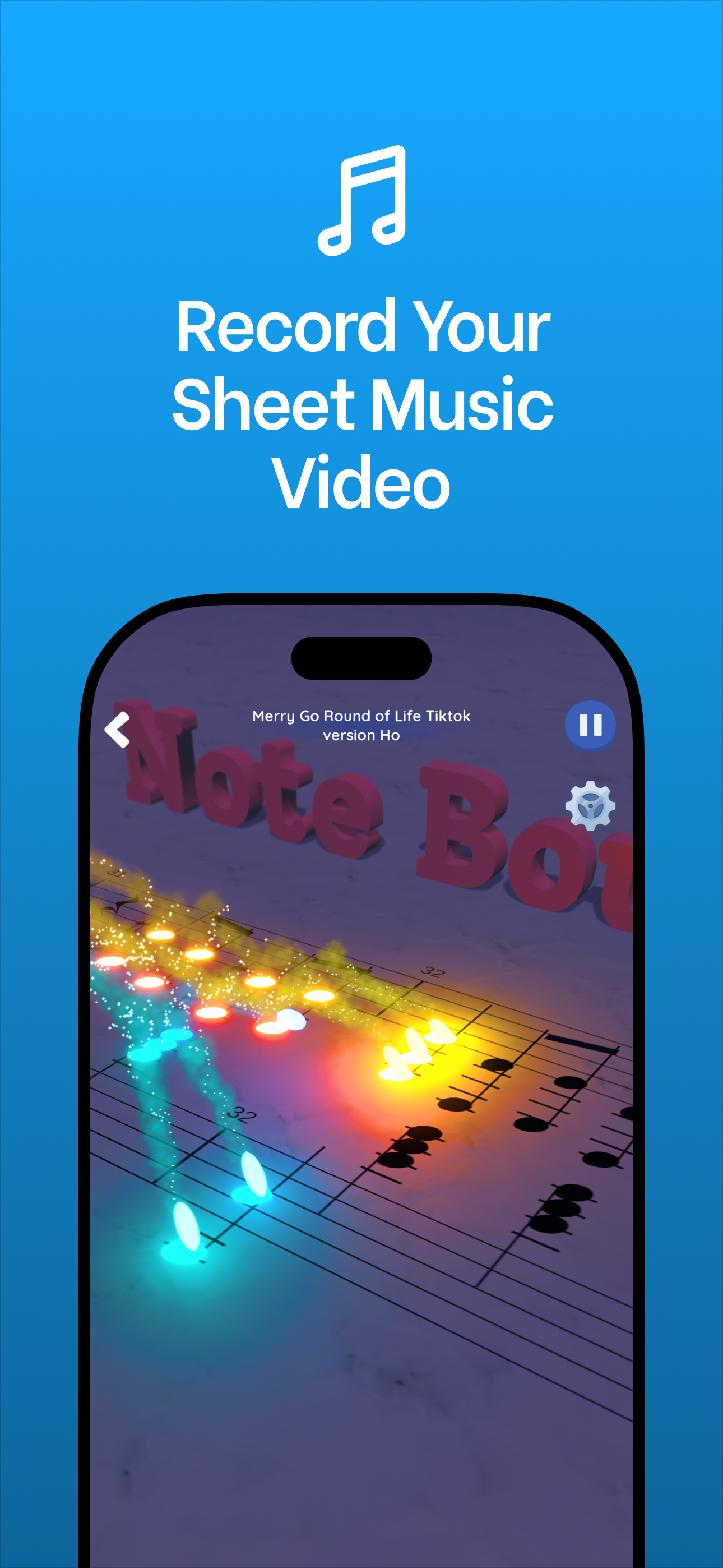
Sheet music adds a small extra. Musicians and learners can follow the notes when they take a break, and the moving score looks deliberate rather than like a static image with music behind it. Note Bounce renders gameplay where the balls land on real sheet music, so you get that moving score without filming anything.
Choose slow public-domain pieces
Stick to music whose composers died long ago, so the composition itself is in the public domain. Here are three classic choices:
| Piece | Composer | Why it suits studying |
|---|---|---|
| Gymnopédie No. 1 | Erik Satie (1888) | Slow, steady and sparse, with a rocking 3/4 pulse |
| Clair de Lune | Claude Debussy (from Suite bergamasque) | Soft and flowing, with gentle swells |
| Nocturne in E-flat major, Op. 9 No. 2 | Frédéric Chopin | A lyrical melody over an even accompaniment |
Dates and background are on Wikipedia's pages for Gymnopédies, Clair de lune and the Nocturnes, Op. 9.
A public-domain composition doesn't make every recording or MIDI arrangement free to use. Use a MIDI you exported yourself from a notation program, or one from the Mutopia Project, and check its license.
Render and assemble the video
Step 1: build the level
Import the MIDI into Note Bounce to build a custom level. If a piece has a quiet ending that trails off, keep it. Fade-outs suit study videos.
Step 2: render the gameplay
Play through the piece and render the gameplay video. Then watch it once at normal volume and check for anything jarring, such as a sudden loud chord or an abrupt ending.
Step 3: decide the length
- Single piece (3 to 10 minutes): good for a break, a warm-up, or short-form platforms.
- Study block (20 to 60 minutes): join several slow pieces in a video editor with short crossfades between them. Keep a similar tempo and mood so nothing breaks concentration.
Step 4: keep the audio level steady
Normalize the audio so each piece in a compilation sits at a similar volume. Leave a second or two of silence between pieces instead of cutting straight to the next one.
Step 5: add minimal text
Show the piece and composer for the first few seconds in small, unobtrusive text, then remove it. In a compilation, a small title in a corner when each piece starts helps viewers who want to look it up.
Titles that match what people search
People search for what the video does for them. Lead with the music, then the purpose:
- "Gymnopédie No. 1 – Calm Piano Sheet Music for Studying"
- "Clair de Lune – Relaxing Piano with Sheet Music (Study and Focus)"
- "30 Minutes of Calm Classical Piano with Sheet Music | Chopin, Satie, Debussy"
In the description, list the pieces and composers with timestamps for compilations. Don't promise results such as "boost your focus"; describe what's in the video and let viewers decide.
For a thumbnail, a clean frame from the render with the piece name in large, calm text is enough.
A quick checklist before you post
- Every piece is a public-domain composition, from a MIDI you made or are licensed to use.
- No sudden volume changes between or within pieces.
- No bright flashing text or effects.
- Title leads with the piece name and the purpose.
- Description lists composers, pieces and (for compilations) timestamps.
- The first few seconds already look and sound like the rest of the video.
A background-music alternative
Not every study video needs classical piano. If your audience prefers beats, RingLoop's catalogue includes lo-fi loops among its house, synthwave and chiptune originals, and it renders landscape video for YouTube or portrait for Shorts and Reels, from 720p up to 4K, with a "perfect loop" option for seamless repeats (larger renders and watermark-free videos need VIP). A looping lo-fi clip can work as a calm break between your piano sessions. Have a look at RingLoop.
Make your first one
Start with a single piece: Gymnopédie No. 1 is slow enough that the moving score is easy to follow. Render it, check the audio, give it a plain title, and post it. If you're new to reading the notation you'll be rendering, the beginner's guide to reading sheet music will help you follow along too.
Frequently asked questions
What music is best for studying?
It comes down to personal preference. Many people like slow instrumental music without lyrics so it doesn't compete with reading, but some study best in silence. Try a few styles and keep what helps you focus.
How long should a study-with-me video be?
Long enough to cover a real work session. A 3 to 10 minute piece works as a short break or warm-up, and you can join several calm pieces into a longer video for a full study block.

Get Note Bounce
Learn to read sheet music while you play. Free on iOS, Android and Steam.