How to Turn a Public-Domain Score Into a MIDI Practice Level
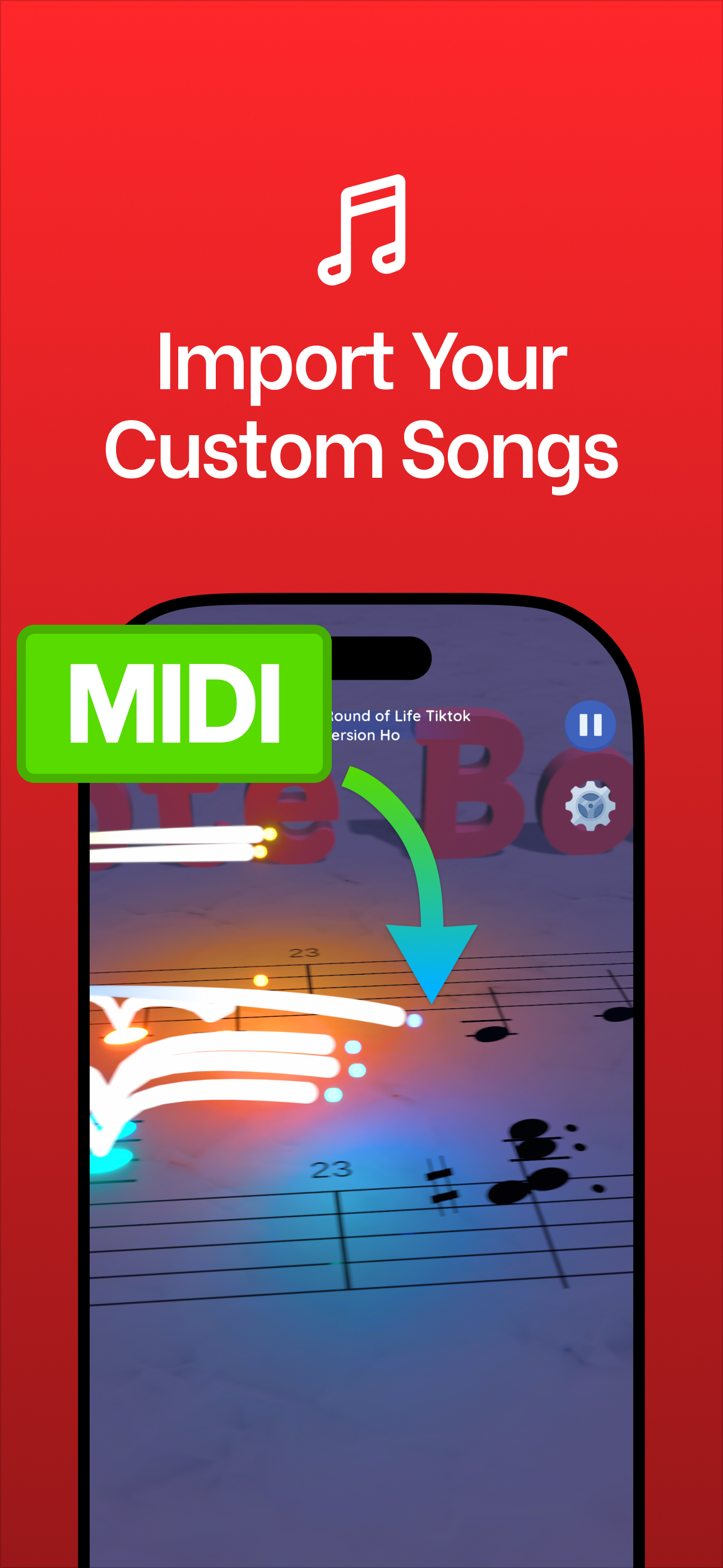
To turn a public-domain score into a practice level, get the piece into a notation program such as MuseScore, simplify it to what you want to read, export it as a MIDI file with repeats expanded, and import that file into Note Bounce. The game then builds a custom level from the MIDI, and the balls land on the notes in time.
That's the short version. The longer version matters because most frustration with custom levels comes from the file, not the game: too many tracks, missing repeats, or the wrong tempo. This guide covers each step, plus a troubleshooting table for the common problems.
Step 1: find the score
You need a piece whose composition is in the public domain, and a source file you're allowed to use.
| Source | What you get | Good for |
|---|---|---|
| Mutopia Project | Free engraved scores, many with ready-made MIDI files | Skipping straight to step 4 |
| IMSLP | Scanned PDF scores, from first editions to later editions | Pieces Mutopia doesn't have |
| Your own transcription | Notes you type in yourself | Short melodies and simplified versions |
A public-domain composition doesn't make every edition public domain. Check the license on each file, and prefer editions marked as public domain or with a free license. The IMSLP vs Mutopia comparison covers what each site offers in more detail.
If Mutopia already has a MIDI of your piece and you're happy with it, skip ahead to step 4.
Step 2: get it into MuseScore
MuseScore is a free notation program. How you get the music in depends on the source:
- From a MIDI or MusicXML file: open it directly. MuseScore will lay it out as a score you can edit.
- From a PDF: type the notes in yourself. For a beginner-level melody, this is faster than it sounds: one staff, mostly quarter and half notes.
- From memory or a simple tune: create a new score with the right clef, key and time signature, then enter the notes.
Typing a melody yourself has a hidden benefit: you have to read every note to enter it, which is reading practice in itself.
Step 3: simplify for reading practice
Full scores are often more than you want for a practice level. Before exporting, decide what you actually want to read.
- Pick one part. For a first pass, the melody alone is easiest. Delete or hide the other instruments, or plan to export only the melody part (see step 4).
- Cut it to a section. Eight to sixteen bars is plenty for a level you'll repeat many times. Save the full piece for later.
- Set a practice tempo. Change the tempo marking to something comfortable. You can export a faster version later.
- Check the key signature and accidentals. Typos here are the most common source of "wrong" notes in a custom level.
Save this as its own file, such as "Minuet in G - melody - slow", so you keep the original intact.
Step 4: export the MIDI
In MuseScore 4, choose File → Export, pick MIDI as the format, and select which parts to export, or combine all parts in one file. According to the MuseScore handbook, MIDI export also offers:
- Expand repeats: when on, repeated sections are written out in full in the MIDI file. When off, repeats are played only once. Turn it on if your score uses repeat signs and you want to practice them.
- Export RPNs: advanced controller data. You can leave it at the default for practice files.
The handbook also notes that a MIDI file sounds different outside MuseScore, because playback depends on the instruments of whatever plays it. That's normal; the notes and rhythm are what you need.
Step 5: import it into Note Bounce
Note Bounce has MIDI import for building custom levels. Move the exported file to the device where you play, import it, and play the new level. Because the balls land on real sheet music, you'll see your piece as notation, and any mistake in your file shows up immediately.
A good routine for a new level:
- Play it once just to listen and watch.
- Play it again naming each note out loud as the ball lands.
- Fix anything that looks wrong in MuseScore, re-export and re-import.
- When it feels easy, export the next section or a faster tempo.
If you're new to naming notes on the staff, the beginner's guide to reading sheet music covers the basics.
Troubleshooting
| Problem | Likely cause | Fix |
|---|---|---|
| A section is missing | Repeats weren't expanded | Re-export with Expand repeats on |
| Too many notes to read | Several parts in one file | Export only the melody part |
| Wrong-looking notes | Typo or missing accidental in the score | Check the key signature and accidentals in MuseScore |
| Far too fast | Tempo marking is the performance tempo | Lower the tempo before export |
| Strange instrument sound | MIDI playback varies by player | Ignore it; the notes are what count |
Start with one short piece
Choose something short and well known, such as the Minuet in G or the opening of Ode to Joy, type in the first eight bars, export with repeats expanded, and import it. Once you've done it once, making a new level takes minutes.
The MIDI you make also works in more than one app. Marble Music (formerly Beat Bounce) turns MIDI files into bouncing-marble music videos where the marble hits every note, rendered for TikTok, Reels and YouTube Shorts, so your practice file can double as a shareable clip. If you'd rather not make a file at all, its site also hosts a library of more than 1,100 free MIDI files to browse. See the Marble Music MIDI library.
Frequently asked questions
Where can I find free public-domain sheet music?
IMSLP hosts scanned public-domain scores, and the Mutopia Project offers free engraved scores, many with MIDI files. Always check the license on the specific file, because a modern edition or arrangement can have its own rights.
Why does my MIDI file play the repeats only once?
In MuseScore, MIDI export has an Expand repeats option. When it's off, repeated sections are played only once in the exported file, so turn it on if you want the repeats included.

Get Note Bounce
Learn to read sheet music while you play. Free on iOS, Android and Steam.