Piano TikTok Without a Piano: 6 Video Ideas for Learners
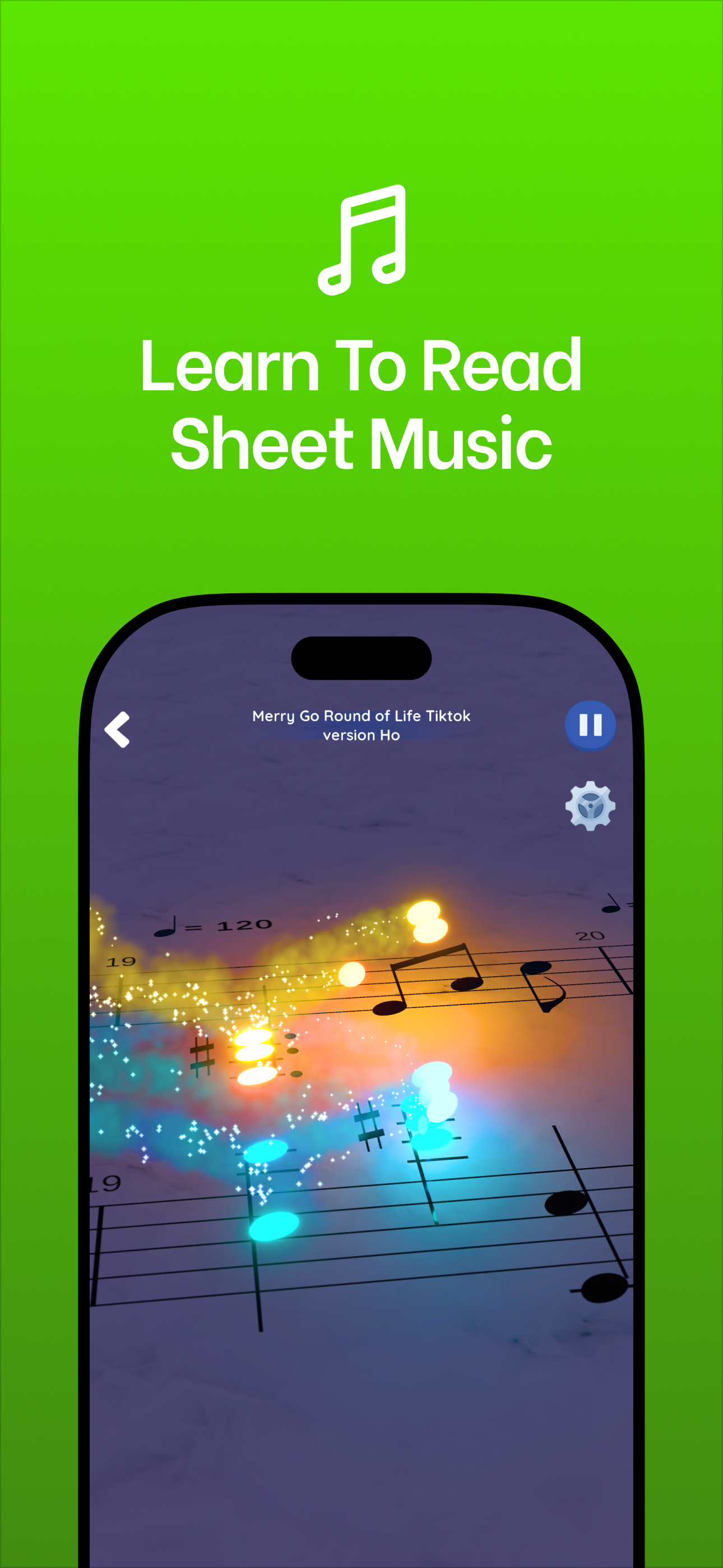
You can post piano TikTok content without a piano by sharing what you are learning: rendered sheet music gameplay, note-reading quizzes and a learning diary, all built from a game like Note Bounce. Below are six formats a beginner can post this week, each with a sample caption you can adapt.
The idea behind all six is the same. You don't need to be good yet. A beginner's progress is a story other learners can follow, and the music on screen does most of the work. If you are still getting comfortable with the staff yourself, start with the beginner's guide to reading sheet music.
What you need (no piano, no camera)
- Note Bounce on iOS, Android or Steam. Bouncing balls land on real sheet music, and the game renders your gameplay as a video you can share. It is free, with optional in-app purchases.
- MIDI files for the pieces you want, imported to build custom levels. Stick to public-domain music such as Beethoven, Bach or folk tunes, and check the license of the specific file.
- A video editor for on-screen text, a freeze frame or a split screen. Any basic phone video editor will do.
That's it. No microphone, no ring light, and your face never has to appear.
Formats that show your learning
These three put you, the learner, at the center. They work best as a series, because each post makes the next one more interesting.
1. "Reading this in real time"
Play a level you have never seen before and post the first attempt, misses and all. The appeal is honesty: viewers watch you work out the notes as the balls land, and readers often chime in with tips.
- Sample on-screen text: "First time reading this. No practice."
- Sample caption: "Missed the jump in bar 3. Trying again tomorrow."
Post the clean run a few days later as a follow-up. The before-and-after pair is the payoff.
2. "Name the first 3 notes"
Freeze the first frame of a run for two or three seconds, with the opening notes visible on the staff. Ask viewers to name them, then let the clip play so the answer arrives as the balls land.
- Sample on-screen text: "Name the first 3 notes before the ball lands."
- Sample caption: "Answer in the clip. How fast did you get it?"
Keep it to three notes. Short challenges are easy to try, and the answers make natural comment threads.
3. "Day X of learning to read music"
A daily or weekly diary. Each post shows one thing you learned: a new note, a rhythm, a short phrase. Start with a gameplay clip, and add one line of text about what clicked that day.
- Sample on-screen text: "Day 9 of learning to read music."
- Sample caption: "Today the spaces finally made sense: F, A, C, E."
Number your posts consistently so new viewers can find day 1. A diary also keeps you practicing, which matters more than any single post.
Formats built around the music
These three put the melody first. They suit days when you have less to say about your own progress.
4. The famous-melody reveal
Show the sheet music of a well-known tune and hide its name until the end. Public-domain classics work well: Beethoven's "Ode to Joy", Pachelbel's Canon, Grieg's "In the Hall of the Mountain King", or Korobeiniki, the folk song known as the Tetris theme.
- Sample on-screen text: "You know this song. Can you name it from the notes?"
- Sample caption: "Name revealed at the end. No cheating with the sound on."
5. Easy vs hard version
Import two MIDI files of the same piece: one with just the melody, and one with the full arrangement. Play both and show them back to back or side by side, so viewers can see how much more notation the full version asks you to read.
- Sample on-screen text: "Easy version vs the real thing."
- Sample caption: "Melody only on the left. Full arrangement on the right. Which one would you try?"
For a different split screen, pair the sheet music with a "satisfying" version of the same song. Marble Music (formerly Beat Bounce) turns a MIDI file into a bouncing-marble music video, so the same import gives you notation on one side and a marble landing on every note on the other. Its site also hosts a free MIDI library, which is a handy place to find files for both games.
6. The slowed-down version for learners
Fast pieces are fun to watch but hard to read. Make a slowed-down MIDI of the same piece in your notation software or MIDI editor, import it, and post it as the "learner" version. Viewers who want to follow the notes can actually keep up.
- Sample on-screen text: "Slowed down so you can read every note."
- Sample caption: "Full speed version on my profile. Practice along with this one first."
A two-week posting plan
If you want a routine, rotate through the formats so your feed doesn't feel repetitive. Here is one way to do it:
| Day | Week 1 | Week 2 |
|---|---|---|
| Mon | Day X diary | Day X diary |
| Tue | Name the first 3 notes | Slowed-down version |
| Thu | Reading this in real time | Clean run of last week's attempt |
| Fri | Famous-melody reveal | Easy vs hard version |
| Sun | Day X diary | Day X diary |
Five posts a week is plenty. If that is too many, keep the diary and pick one other format; a schedule you can keep matters more than a busy one. No format guarantees views, so watch which ones get people commenting and make more of those.
One note on music choice: covers of modern copyrighted songs carry copyright risk on every platform, so check each platform's music policy or stick to public-domain pieces.
Start your first series today
Pick format 1 or 3, because they only need one gameplay clip and one line of text. Open Note Bounce, choose a piece you haven't played, render your first attempt, and post it with the sample caption. Tomorrow, post day 2.
Frequently asked questions
What should a beginner post on piano TikTok?
Post what you are actually learning: a first attempt at reading a piece, a short note-naming quiz, or a daily diary of your progress. Honest learner content gives viewers a reason to follow along without needing advanced playing skills.
Do I need to show my face in music videos?
No. Every format in this list works as a screen-only video, using a rendered gameplay clip with on-screen text. You can add a voiceover if you like, but it is optional.
Get Note Bounce
Learn to read sheet music while you play. Free on iOS, Android and Steam.